
Overview
Notifications can be sent to users who have the App installed on their phone and/or tablet. It can be sent to all members as a broadcast, or to individual members.
Create a Broadcast Notification
From the USERS menu item in the left navigation, by clicking on “App System Notification,” the Back-Panel users can see a list of all the pre-set notifications available to be sent as a System Notification, which is the notification that will be displayed inside of the app:
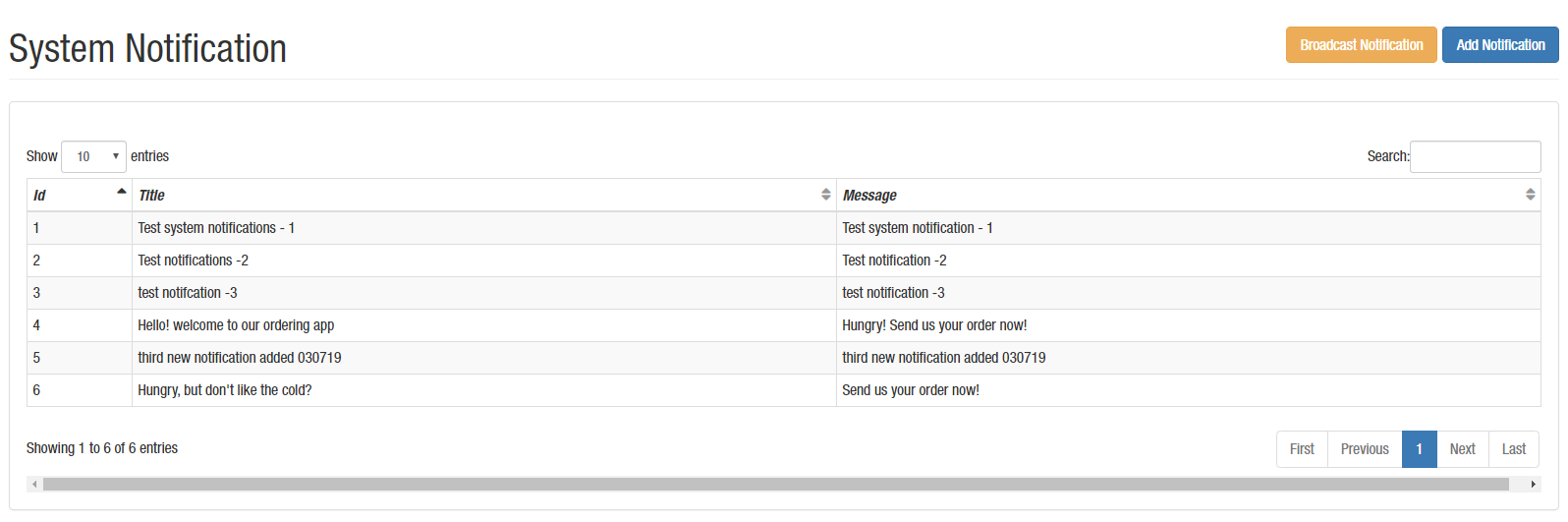
To create a new notification, click on the “Add Notification” button on the top-right. A new screen will open with the following fields:
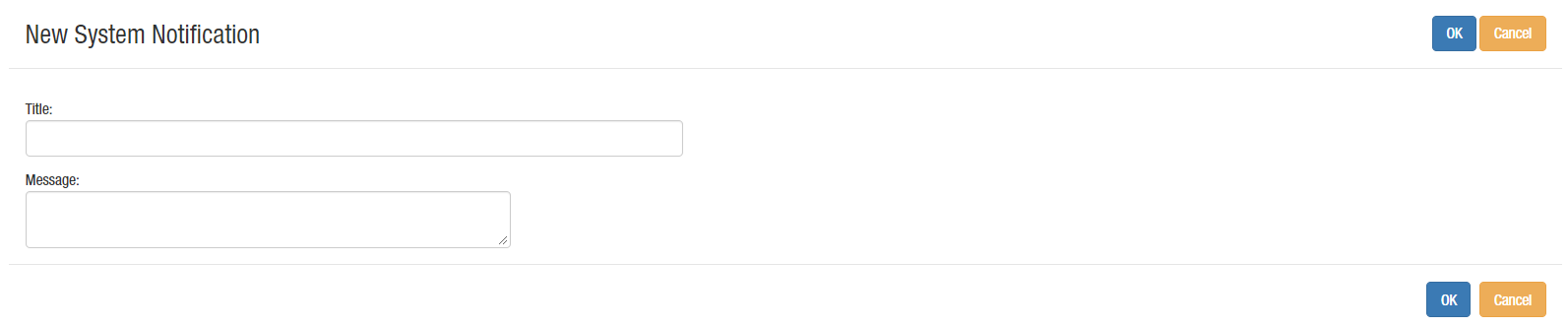
To save click the “Ok” button or click “Cancel” to cancel.
Send Broadcast Notification
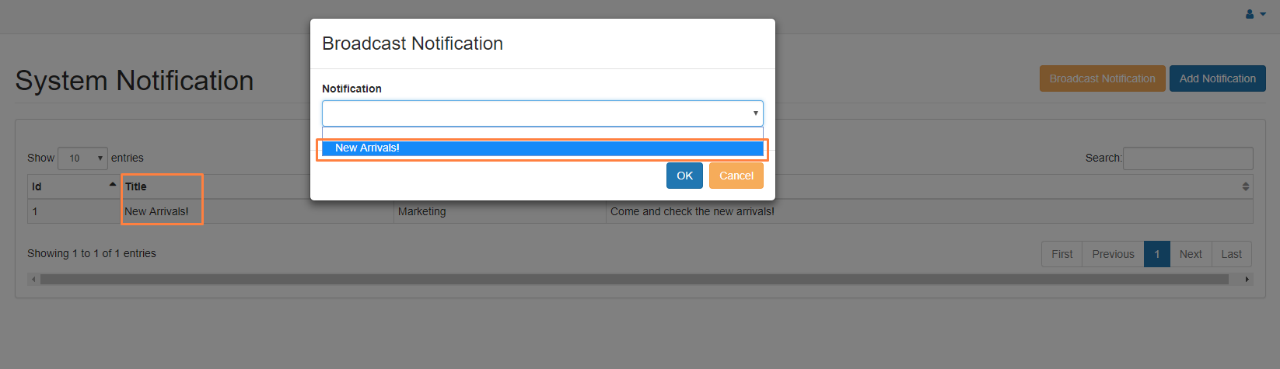
Once the notification is created you are able to send it. At the system notification screen by clicking on “Broadcast Notification” users can send a broadcast notification, the user will be required to select a notification from the dropdown (which was previously created, as explained on the section above), and click “OK” button. The notification will be sent to all the customers that have the app installed.
Send Individual Notification
Notifications can also be sent individually. To do so, at the user’s page, click on the desired user. This will open the edit user’s screen. On the right side, click on the “Send Notification” button. Pop-up screen will open, where you can type the desired message and click “OK” button to send.

PLEASE NOTE: Pre-set notification cannot be used for notification to individuals.