Skip to content
  • There are no suggestions because the search field is empty.

📄COGs By Period Report

This article covers an outline of the COGs by Period Report , which similar to the COGs By Stocktake Report, it takes into account Sales and Stock to calculate a true Cost of Goods and Profit. 

Overview

This report is similar to the COGs By Stocktake Report, it takes into account Sales and Stock to calculate a true Cost of Goods and Profit. 

However, in this case, there is more flexibility over the Reporting Period as opposed to Stocktakes.

Also similar to the COGs By Stocktake Report, this Report can be configured to Report on a desired Venue and Store.

Additionally, there are various flags and Product List options which can be used to control how much of the Product List will be reported on.

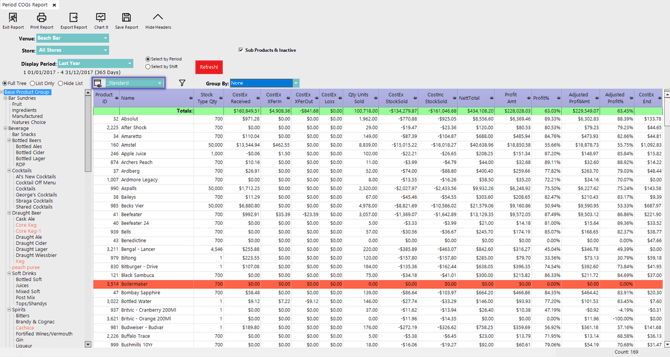
The Report's Standard View presents various Cost data including for Receipts, Transfers, Loss, and Sales and this View also shows Profits for the selected Period.


Prerequisites

  • To access COGs features, the applicable Operator Privileges   will need to be enabled 
    • Other Reports: "Allow Analysis Reports" flags
    • Operator Maintenance 'Reporting' Tab


Accessing the Report

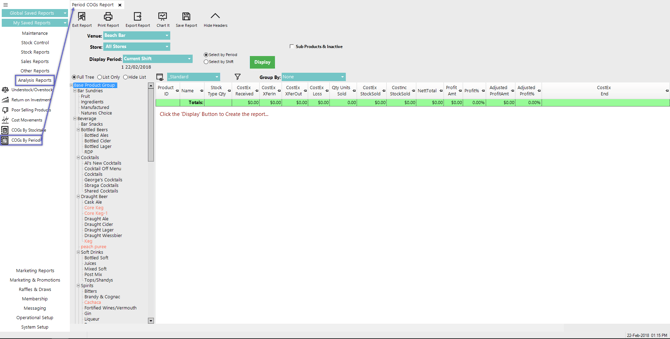
  • To locate the COGs By Period Report - after logging into BackOffice, navigate to the side menu where Analysis Reports can be found
  • After expanding the Analysis Reports menu, the COGs By Period Report will be available for selection
  • Select the Report and once the tab opens choose the preferred Reporting Options (see below for details) and then click the Display/Refresh button to run the Report
 

Reporting Options 

Option

Description

Visual/s (if applicable)

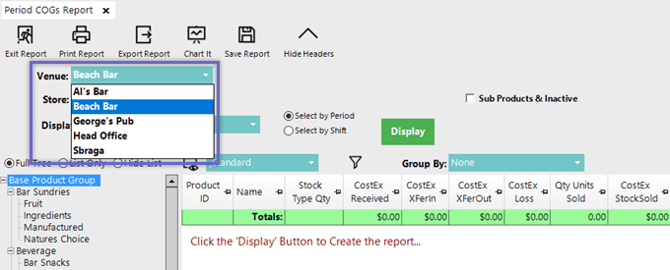
Venue drop-down
  • The Venue drop-down allows for selecting a specific Venue for Reporting if there are multiple Venues in the database
  • The list in the drop-down will replicate the list of Venues in the System's database


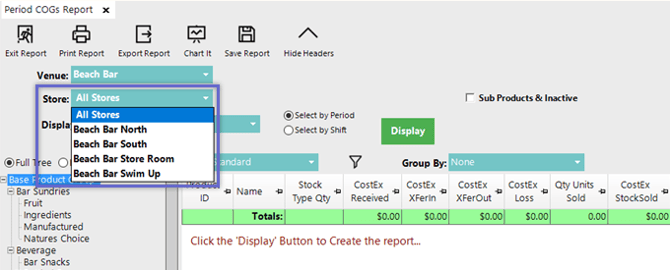
Store drop-down
  • The Store drop-down allows for selecting a specific Store from the selected Venue for Reporting
    • Optionally, choose 'All Stores' to Report on Stocktake COGs for all Stores within the Venue
  • The list in the drop-down will replicate the list of Stores that belong to the Venue that has been chosen in the Venue drop-down


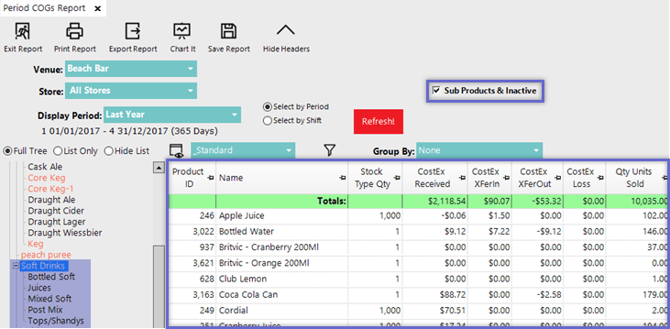
Sub Products & Inactive flag
  • This flag is only applicable when using the Full Tree or List Only options
    • When using the List Only option, the following information is only applicable if 'All Parent Groups' is selected
  • If this flag is enabled, the Report will display data for all Sub Products and Inactive Products that belong to the selected Product Group
  • With this flag disabled, the Report will only show data for the selected Parent Group's first set of Child Groups (if the selected Parent Group has Child Groups)
  • If the selected Parent Group doesn't have Child Groups, this flag will not change the Report data


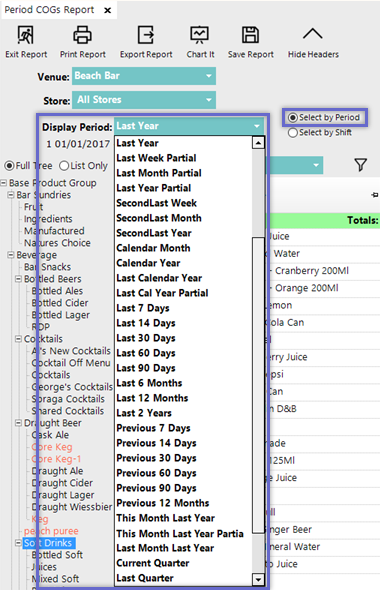
Select by Period & Display Period
  • When the Select by Period radial is selected as opposed to the Select by Shift radial, the Reporting Period option will be a Display Period drop-down offering the standard BackOffice options of available Periods
  • With the Select by Period option chosen, select the desired Display Period for reporting


Select by Shift
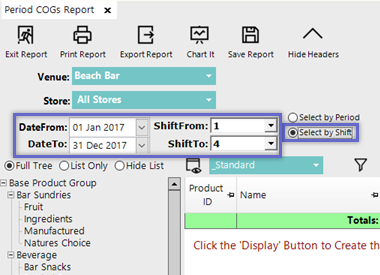
  • When the Select by Shift radial is selected as opposed to the Select by Period radial, the Reporting Period will allow for setting a Date/Shift range From and To
  • With the Select by Shift option chosen, set the desired DateFrom, Shift From, DateTo, and ShiftTo for reporting


Full Tree radial
  • When the Full Tree radial is selected, the Product List will display all Product Groups in the database and they will be laid out in a tree-like structure with Parent Groups and Child Groups
  • This allows for selecting any specific Product Group to Report on
 
List Only radial
  • When the List Only radial is selected, the Product List will display the lowest-level Product Groups from each Parent Group and they will be laid out in an alphabetical list
  • This limits the Report to only have the capability to report on the lowest-level Product Groups
 
Hide List radial
  • With the Hide List radial selected, the Product List will be hidden altogether and the report will display all of the Products in database which are applicable to the Reporting Options selected
 
Group By drop-down
  • This drop-down allows for selecting how the Report data will be Grouped if desired to do so
  • Grouping the Report data allows for further refinement and analysis
  • Each Group will have its own Totals line and can also be collapsed or expanded within the Report
  • Select from the following options:
    • None
    • Parent Name
    • Parent Tree
    • Export Codes 1 - 4
    • Product Type
    • Type Group
    • Product Sort
    • Sort Group
    • Supplier
    • User Layout


Standard View

  • The COGs By Period Report has a Standard View which is unique to this Report
  • Alternatively, additional Views can be added by selecting the View icon and completing the standard procedure for Adding and/or Editing Views

Column Heading

Data Description

Stock Type Qty
  • This column displays the Total Quantity of the Stock
CostEx Received
  • This column displays the Cost of Goods Received 
CostEx XferIn
  • This column displays the Cost of Goods Transferred In
CostEx XferOut
  • This column displays the Cost of Goods Transferred Out
CostEx Loss
  • This column displays the Cost of Goods that are lost, damaged or stolen
Qty Units Sold
  • This column displays the Total Quantity of Units sold during the reporting period
CostEx StockSold
  • This column displays the Cost Excluding Tax of Sold Items or Stock during the reporting period
NettTotal
  • This column displays the Nett Total of the Stocked Products during the reporting period
Profit Amt
  • This column displays the profit amount generated from Stock Sales during the reporting period
Profit %
  • This column displays the percentage of total profit earned by selling the specific stock
Adjusted Profit Amt
  • Adjusted profit amount is the actual profit amount earned by the business after reporting all the activities
  • I.e., Adjusted Profit is reported after adding the CostEx Received and CostEx Transferred In and deducting CostEx Transferred out and CostEx Loss with the Gross Profit
Adjusted Profit%
  • This is the adjusted profit percentage earned from the Sales
CostEx End
  • This column displays the Cost excluding Tax of Stock at the end of reporting period