
Overview
A Price Check is a Stock Function which allows the Operator to check for the Price of a Product within any Venue and Store.
Prerequisites
- Minimum Bepoz version of 4.7 and onwards
- Completion of SmartPDE Mobile App Setup
- To access Price Check functions within the SmartPDE mobile application, the applicable Operator Privileges will need to be enabled:
- General Stock Settings: "View Cost Prices" Flag
- General Stock Settings: "View Stock Information" Flag
- General Stock Settings: "View Other Venue Stock" Flag
- General Stock Settings: "Store Products Only" Flag
- Operator Maintenance 'Stock Control' Tab
Completing a Price Check
It is a good practice to retrieve the latest copy of the database before performing any stock operation within the SmartPDE Mobile App
Select 'Get New Database' on any PDE' with the exception of a Denso PDE
- After logging into the SmartPDE Mobile App using a valid Operator ID, complete the following steps to conduct a Price Check:
- Click on the "hamburger"-style icon on the top left of the application screen and click on the 'Price Check' option in the side menu
- This will open the Price Check home screen, proceed to select a Venue and Store to check the price of a Product
- Once the Venue and Store are selected, click on the 'Search' button at the bottom to complete a Price Check request
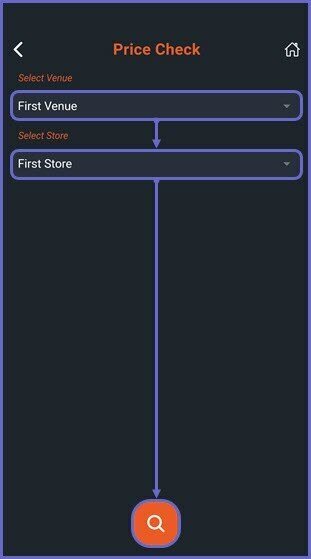
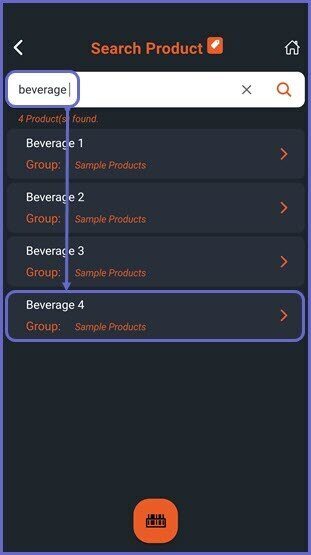

- Proceed and search for a desired product by typing the product name or by using the mobile Barcode Scanner option at the bottom of the screen
- Note: To Add a Barcode or search a product using a barcode, please refer to this article
- Once the desired product is selected, the Product Details page is opened
- Proceed to Price Check the selected Product
- Under the selected PriceMode, the Price Levels will be displayed for the Operator to do a Price Check of the selected Product