
Overview
There are four types of fields in the "Custom Info" Tab:
- Flag fields
- Number fields
- Date fields
- Text fields
Prerequisites
- Operator Privilege to access BackOffice
- Operator Privilege to View Product Custom Info
- Operator Privilege to Edit Product Custom Info
- Operator Privilege to View Product Promo Custom Info
- Operator Privilege to Edit Product Promo Custom Info
Editing Custom Fields
- To edit the Fields in the Custom Info Tab, click Edit Custom Fields on the bottom left of the Tab
- This will bring up a new window titled Product Custom Fields
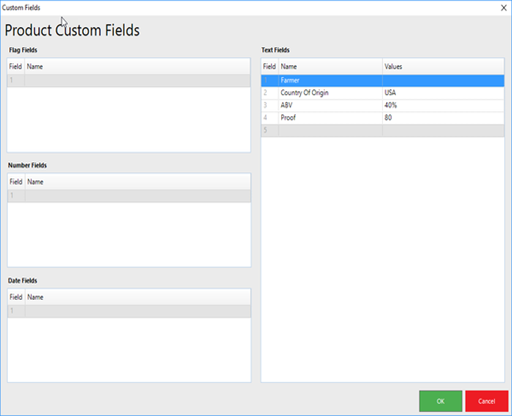
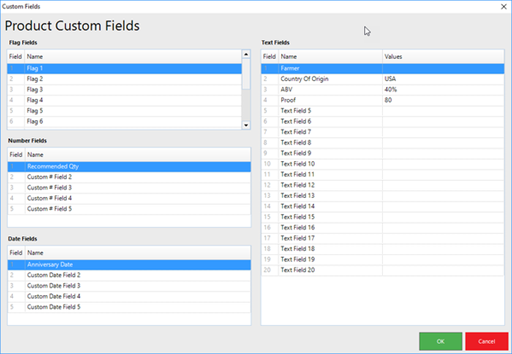
- Once these Custom Fields are added or edited, they will appear on the Custom Info Tab and will be optional to select or to use for each Product
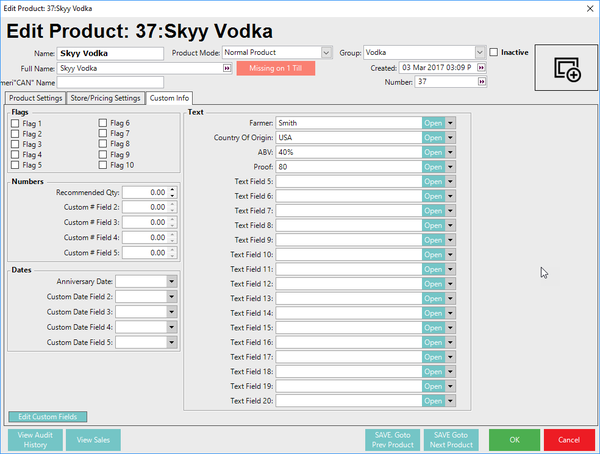
Types of Custom Fields
|
Custom Field Type |
Description |
| Flag Fields |
|
| Number Fields |
|
| Date Fields |
|
| Text Fields |
|
Step-By-Step Guide
- Clicking on the Edit Custom Fields button will open a Custom Fields window where the fields can be edited
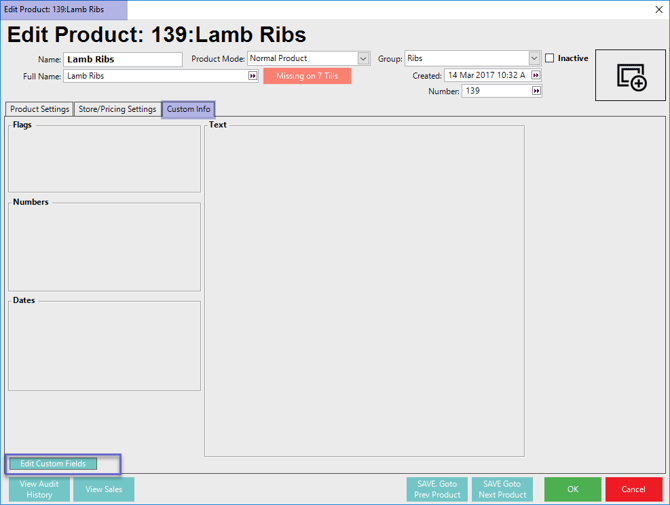
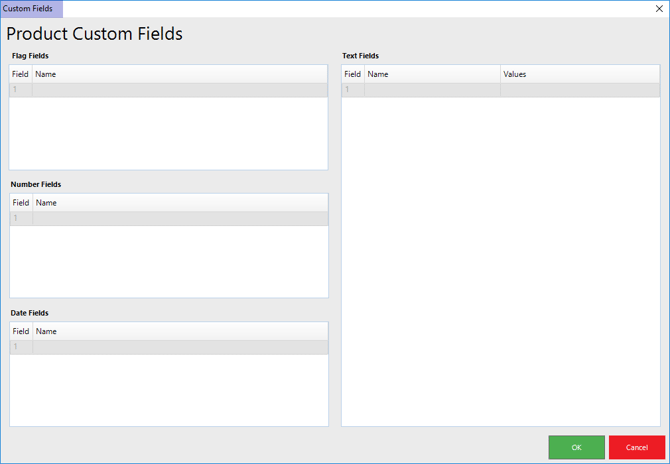
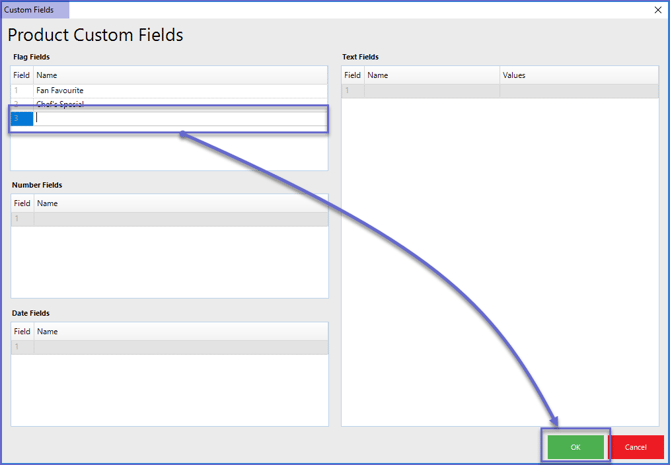
- Within this window, click in a Field Name area to begin Editing
- For Text Fields, add Values to select from for each Text Field Name as well; double-click in the Value Field to open a window for Multiple Entries
- When finished, click OK
- Operators can create a custom View using Custom Info Fields to sort through Products, Operators, Suppliers, etc
Video Walkthrough