Overview
There are two ways that the Price of a Product can be changed in BackOffice. Prices can be changed in the Product List when Direct Edit mode is enabled. Alternatively, Prices can be changed in the Edit Product window.
Prerequisites
- Operator Privilege to access BackOffice
- Operator Privileges to View and Edit Products
- Operator Privilege to Edit Prices
#1. In the Product List
Run BackOffice and Log In
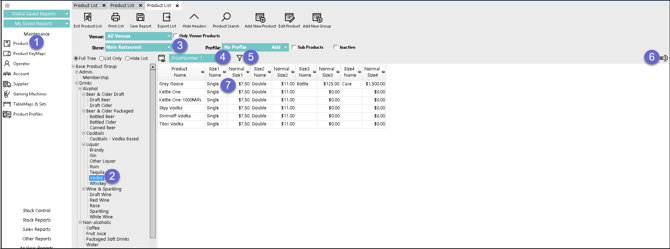
- From the Maintenance menu, select Product List
- Navigate through the Product List and select the Product Group that you wish to Edit
- In the Store Drop Down, select the appropriate Store
- From the View drop-down, select a view that shows the prices to be changed; the default view with prices is _'PriceNumber 1'
- Use the Filter to limit Products, if necessary
- Click on the Edit Mode button on the far right; once enabled, this will change to an "X" which, if clicked will exit Edit Mode
- Click on the price to be changed, and enter the new price
While in Edit Mode use the arrow keys to move between products; use the TAB key to move right between columns.
The Store and Product can be changed while in Edit Mode, and Edit Mode will remain active.
#2. In the Edit Product Window
- Run BackOffice and Log In.
- From the Maintenance menu, Select Product List
- Navigate through the Product List and Select the appropriate Product Group
- Within the Product Group, Double-click on the Product that you wish to Edit
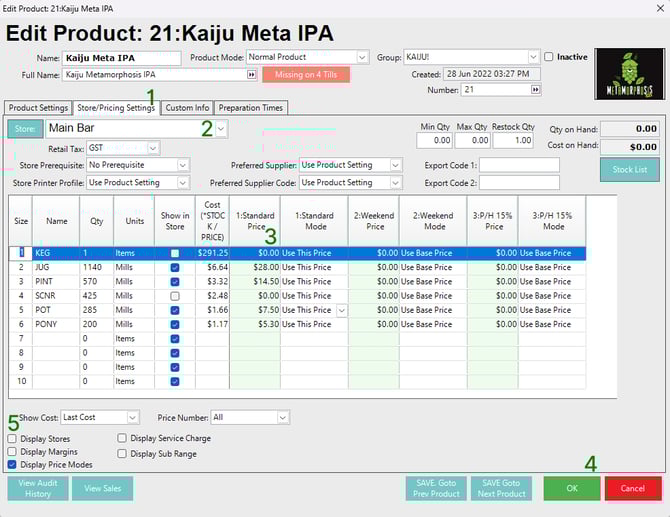
- Navigate to the Store/Pricing Settings Tab
- In the Store drop-down, Select the appropriate Store
- Click on the Price [of the Size] to be changed, and Enter the New Price
- Click on the OK button to Save the Changes to the Product Prices
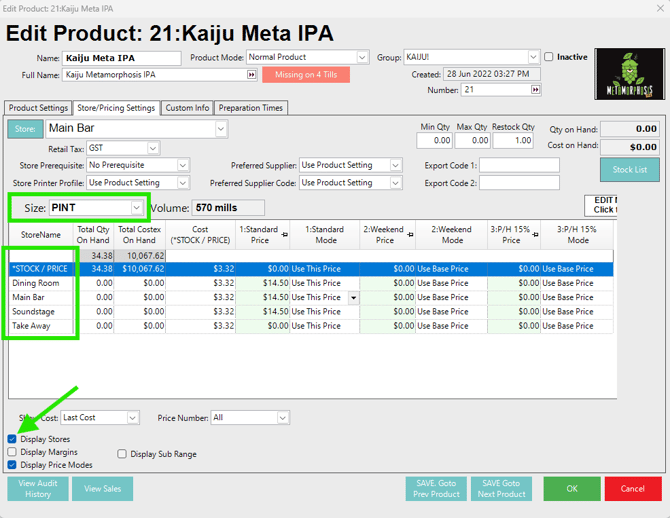
- Tick the flag "Display Stores" on to change the price of the Product and/or its Sizes across different Stores (second image)