Overview
An Electronic Invoice is a summary of goods or services that have been purchased by the Buyer.
Receiving is the second and equally important half of the Purchasing & Receiving process. When Receiving a Purchase Order, Stock is received into the System through a standard receiving process. After Receiving and verifying a Purchase Order, the Invoice Details can be entered and the Receipt can be Posted.
Prerequisites
- To access and edit Purchase Order Settings, the applicable Operator Privileges will need to be enabled:
- Purchasing & Receiving: "Receive Purchase Orders" Flag
- Purchasing & Receiving: "Receive Manual Receipt" Flag
- System Setup: "Maintain Supplier Comms" Flag
- Operator Maintenance 'Stock Control' Tab
- Operator Maintenance 'General' Tab
Receiving an Electronic Invoice
- Run BackOffice and Log In
- From the Stock Control menu, click on the Purchasing & Receiving
- Click the Receiving Invoices Button and the Receiving Invoices Menu will appear
- Select the desired Invoice that will be Imported and also the Venue that will receive the Stock
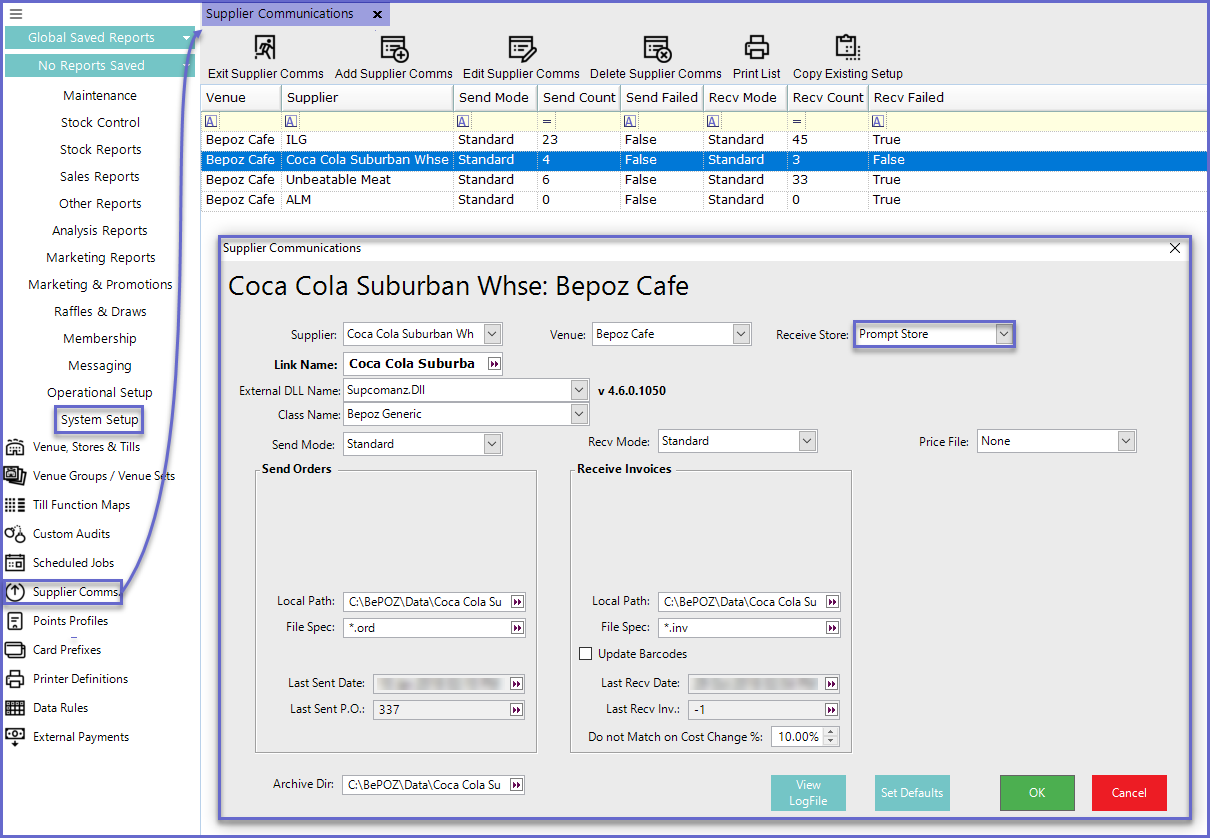
- The Option to select a Venue can only be prompted if configured in the Supplier Communications Menu (see Prompt Store below for more information)
- Press OK and a new window will appear showing the Operator that the Files have successfully been Imported

Electronic Invoicing Error Explanations
- When matching the Electronic Invoice from the Supplier to Bepoz, there may be some errors that occur on the product. These line items are distinguished through a highlighted color. Below gives a brief explanation of what these errors are and how to fix them.
Prompt Store
- There is an option when configuring within the Supplier Communications Menu – within the Receive Store drop-down list called "Prompt Store"
- When Receiving an Electronic Invoice, the user will be prompted to Select a Store to receive the Invoice to