
Prerequisites
- Minimum Bepoz version of 4.7 and onwards
- To access SmartPDE features, the applicable Operator Privileges will need to be enabled
- Operator Maintenance 'Stock Control' Tab
- All Requisitions Flags
- Operator Maintenance 'Stock Control' Tab
How-To Guide
-
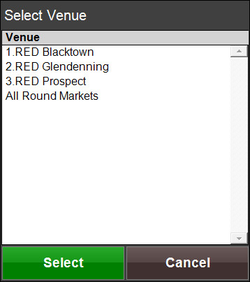
After selecting the Create Requisition button, the system will prompt to select a Venue
-
Select a Venue to continue or select Cancel to cancel the selection
-
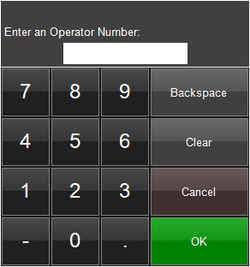
Next, enter an Operator Number
-
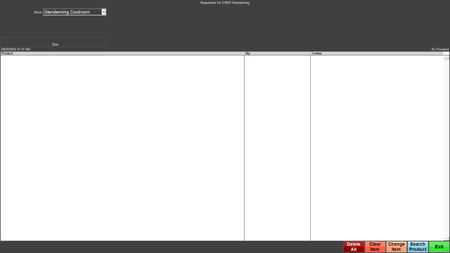
After entering an Operator Number the Requisition Screen will appear
-
To add a Product to the Requisition, you can scan a Product Barcode if a scanner is attached to the computer/tablet
-
Alternatively, select the Search Product button
Delete All
-
This button will allow for deletion of the whole Requisition
-
After selecting, a window with the message, 'You have selected to Cancel the requisition entered Do you want to continue?' will appear
-
Select Yes to continue or select No to cancel deleting the requisition
-
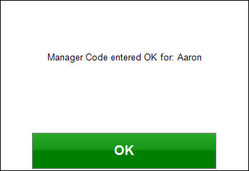
After a Yes selection, a Manager's Operator Number will need to be entered to proceed with the deletion
-
A window will confirm that a Manager Code has been entered
-
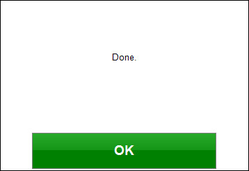
Another window will prompt 'Done'
-
Select OK to continue and return back to the main menu screen
Clear Item
-
Selecting this button will allow for Clearing a line Item from the Requisition
-
To clear a line item, select a Product from the Requisition list and select the Clear Item button
-
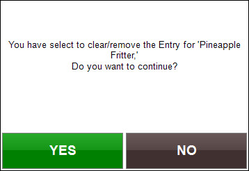
A window will appear to confirm the item selected is going to be removed from the Requisition
-
Select YES to remove the item or select NO to cancel the removal of the item
Change Item
-
Selecting this button will allow for changing the Quantity Amount requested of a Product
-
To change the Quantity Amount, highlight the desired Product and select the Change Item button
-
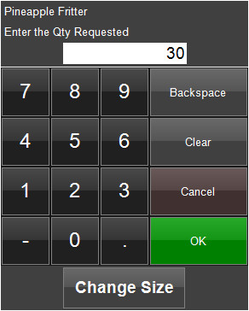
A window will appear to allow for changing the requested amount
-
Enter the desired amount and select OK
Search Product
-
A Product can be manually added to the Requisition by selecting the Search Product button
-
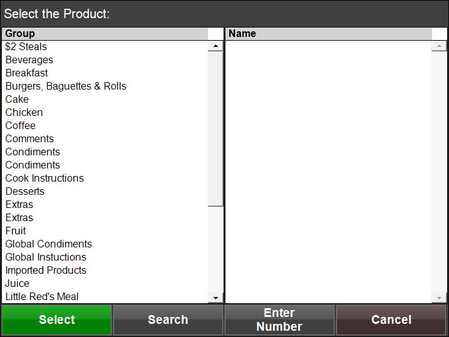
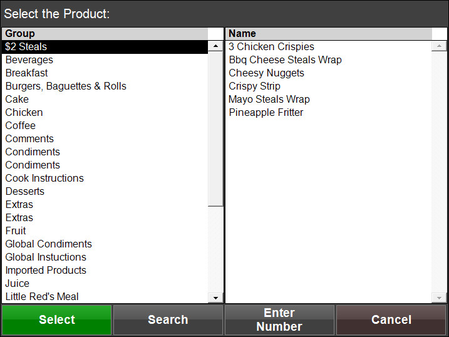
The system will prompt a Product Selection screen
-
After selecting a Product Group from the Group column, a list will populate in the Name column
-
Select a Product to continue with adding it to the Requisition
-
The system will prompt for entering a Quantity; enter an amount and select OK
Send & Exit
-
Selecting the Send & Exit button will send all changes to the Server and exit the Requisition screen
-
A window will appear with a message, 'Do you want to transmit these *** entries to the Server Now?'
-
Select YES to Continue or select NO to Cancel
-
After selecting Yes, another window will appear with a Confirmation and Transaction ID number
-
Select OK to continue and return back to the main menu screen