
Overview
The User Defined method allows for creating a Purchase Order based on Min, Max or Sales History and also then allows for a number of manual adjustments, if required.
How-To
-
Run BackOffice and Log In
-
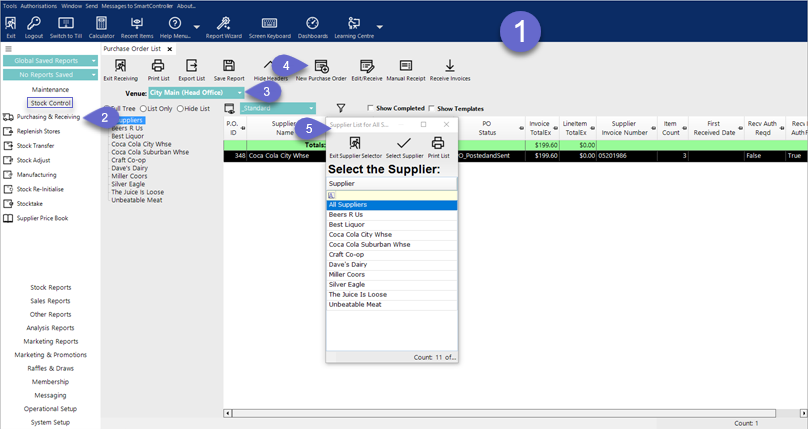
From the Stock Control menu, select Purchasing and Receiving
-
Choose the corresponding Venue from the drop-down selection
-
Click on the New Purchase Order button
-
A Supplier List will appear; select the desired Supplier
-
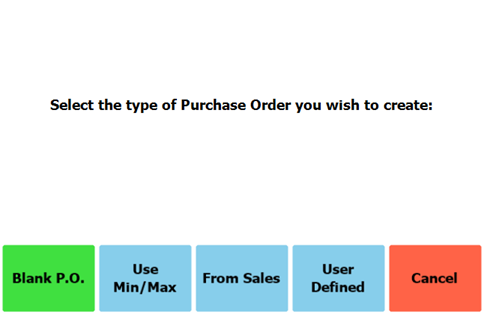
After selecting a Supplier, the below screen will be displayed
-
Choose User Defined
-
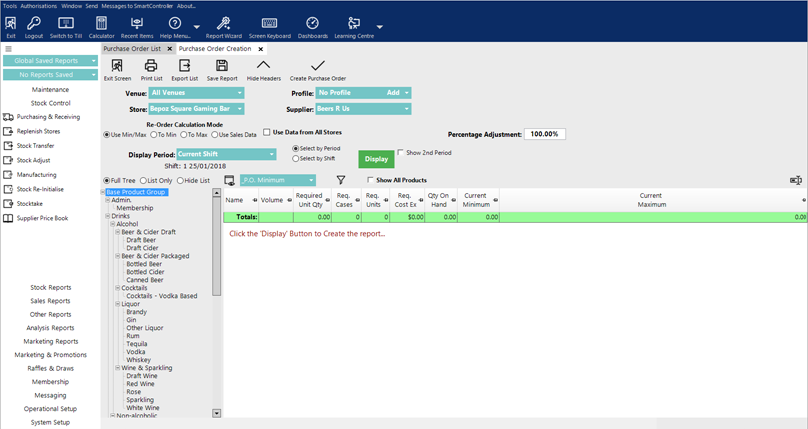
The User Defined Purchase Order Creation tab will open
-
Ensure the desired Venue and Store are selected
-
Select the Re-Order Calculation Mode:
-
Use Min/Max: suggested total minimum is set to prodstore MinStock value; total max is set to prodstore MaxStock value
-
To Min: suggested total minimum is set to prodstore MinStock value; total max is set to 0
-
To Max: suggested total minimum is set to prodstore MaxStock value; total max is set to prodstore MaxStock value
-
Use Sales Data: enables reorder days & safety stock days; suggested total minimum is set to total max is set to prodstore MaxStock value
-
-
If the Use Data From All Stores flag is selected, then loops through all prodstores stores and sums the values above
-
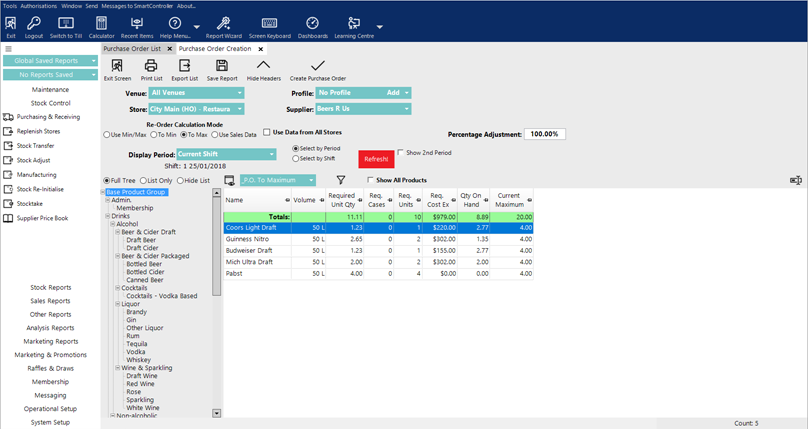
Select the Display button to generate the report
-
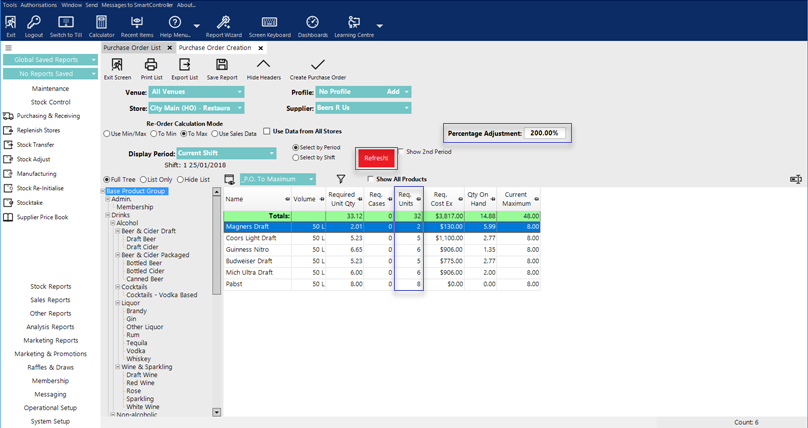
Optionally, enter a Percentage Adjustment, if desired, in order to meet projections
-
Select the Refresh button; the report will be updated with the adjusted figures
-
Once happy with the figures, a Purchase Order can be created from the generated report by selecting the Create Purchase Order button
-
The Purchase Order will be automatically generated
-
Add, remove or alter values using the same method as with a Manual/Blank purchase Order
-
To Post the Purchase Order select the Post Purchase Order button
-
User Defined Saved Reports can also be used for the scheduled job called POSaved Reports
-
The job will order the product on the saved Purchased Order through a schedule