
In Backoffice, under Sales Reports click on any report.
Example Product Summaries Report:
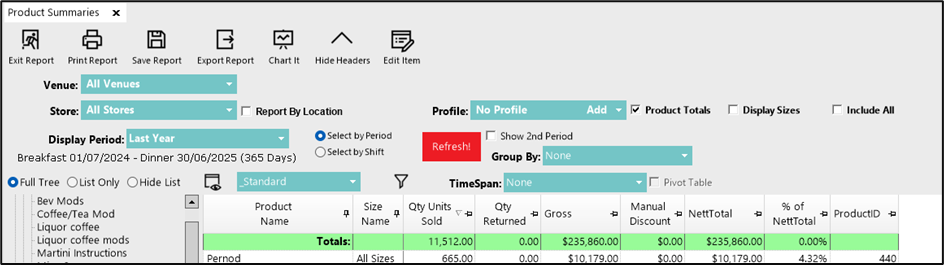
If you are part of a Multi-venue system, select the Venue to be reported on:

Now from the Store drop down, select a Store.

Then Select a Display Period from the drop down, which is the date and time you want to run the report for. Either a custom date range or a generic period like Last Week.

Select a Group of Products or select All Beverages*, from the Full Tree view (Left) that need to be reported on.
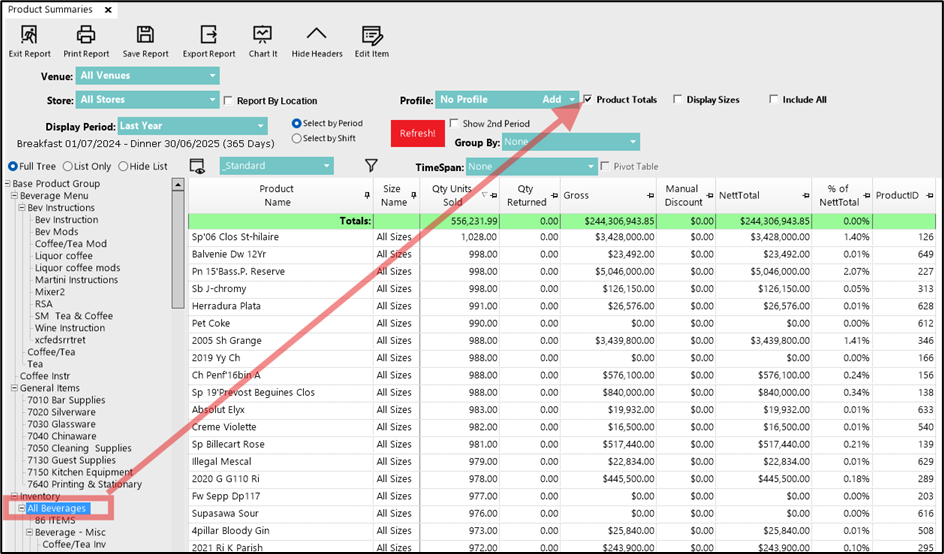
Note* If selecting a top-level group like 'All Beverages', you need to flag on Product Totals. This will break down the sub-groups into a list of products alphabetically.
Once the above has been done click Display to see your populated report.
More Advanced Options
Display Sizes - when flagged on will show the Size Name of the product in the report.

Include All - When flagged on will show every single product in the report even if there is no activity and their figures will be 0
On the View drop down, you can change the View which will change the columns in the report layout this changing the appearance and results of the report.

The Filter will allow you to narrow the results of your search in the report.
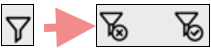
Example, with the Filter On, you can filter for Lagers only and see just those results in the report.
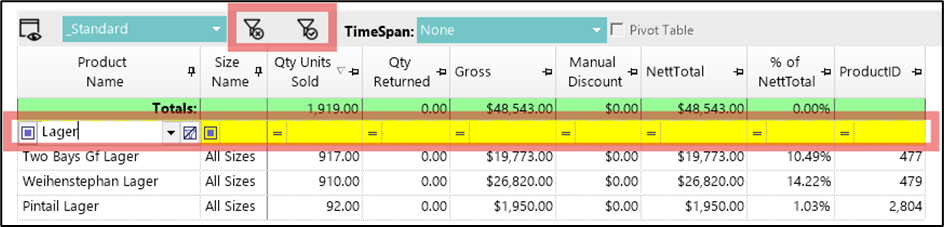
To turn off the filter click the 
To Save the filter with this report view click the  symbol and follow the prompts.
NOTE: The Some reports like Stock and Analysis reports, have different features