
Overview
The Export function is available in all reports, except Till Balance, and in most maintenance screens.
The Export button allows the information currently displayed to be exported in Excel format or to a text file that has a designated character as the field separator.
The character that is the separator can be selected from tab, hash, per cent, comma, semicolon, caret or pipe.
Below is the procedure to export a report.
Prerequisites
- To be able to Create, Edit and/or View reports, the applicable Operator Privileges will need to be enabled:
- 'Sales Reports' Flags
- 'Other Reports' Flags
Export a Report
Read the Full article on how to Run almost Any Report here
After you have a report open and displaying data:
- Click the Export Report button
 Select an Export Format [Highlight and Select Export Format or Double click one to select]
3. Example: Excel 2007 or Later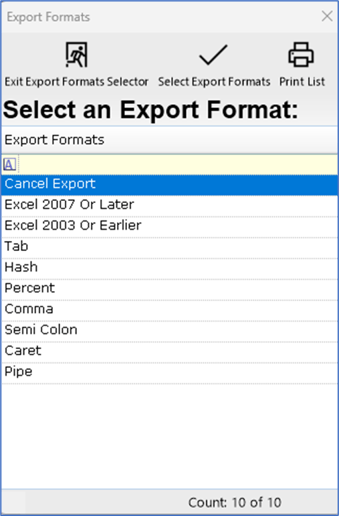
4. Choose a location to Save the file
5. Change the name of the file if required, it will automatically default to the name of the view. If you change the file name ensure you insert the correct file extension you require. 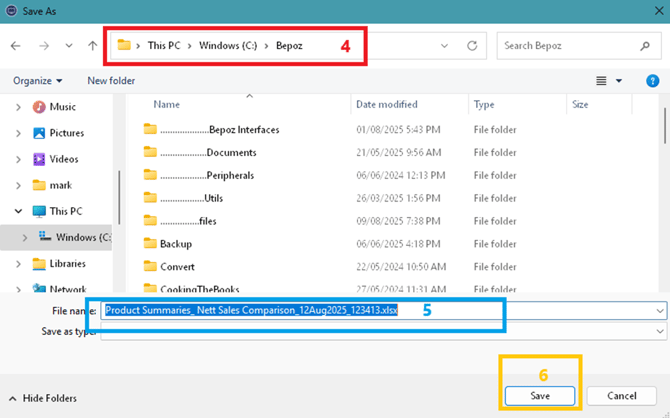
6. Click the Save button. A prompt will appear describing what information has been exported to where and if you would like to open the spread sheet now if you exported in Excel format and the Excel program is available on your local hard drive.
NOTE: If a text format is chosen, it will ask if the Column names are to be included. If Excel format is chosen, it will ask if you want to open the spreadsheet now.

